Running a Campaign
Running a Campaign
It's time!
Now that you have created you first Campaign Template as outlined in the last course (if you missed it just click on the link) it's time to run the campaign! Below we will outline the steps to get the deals going!
The Basics:
This offer is available for one week, from Thursday to Wednesday, must be entered four weeks in advance, can only be used once per phone, and is exclusive to POS-integrated retailers.
Limits:
Worried your campaign might be too successful? Relax. All campaigns can be limited to the amount you want to spend. Once your campaign reaches it's limit, all remaining coupons are removed from the system.
Multiplier:
This only applies if you have an active rewards program. Bonus rewards points will be given when that coupon is applied to a product. For example if you have a 3% rewards program and put a 2x multiplier on a coupon, then the product(s) it is applied to will award 6% points.
Media:
All campaigns are required to have an image or video. Images can either have an aspect ratio of 4x3 or 3x4. Alternatively you can use your Vimeo hosted video.
Exclusivity:
Want to make a special deal for that special retailer? No problem! With PETZ you can include a set of retailers in one campaign and exclude them from another. This way the consumer sees only the campaigns you want them to and that store you wanted to is now happy too.
To run the campaign follow these steps:
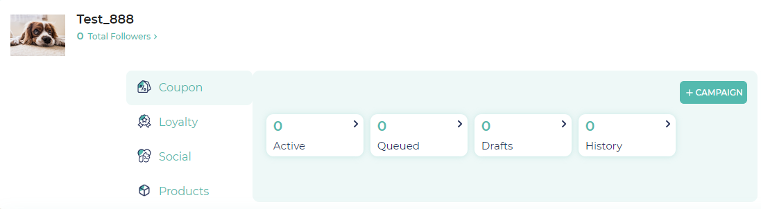
- Log into your portal and find your brand card. Select "+ Campaign". (image1)
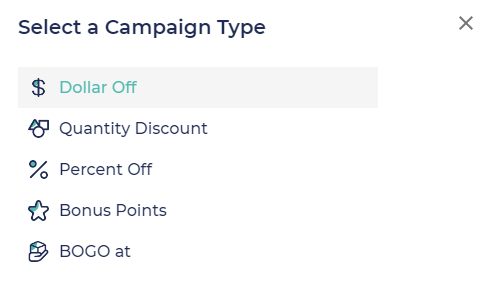
- Select the type of discount. (image2)
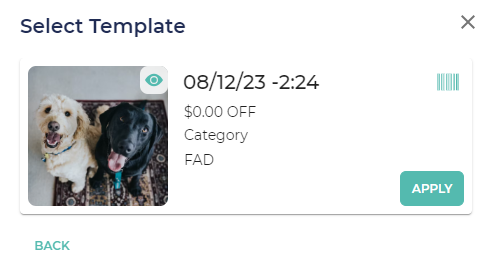
- Click Apply on the one you want to run. (image3)
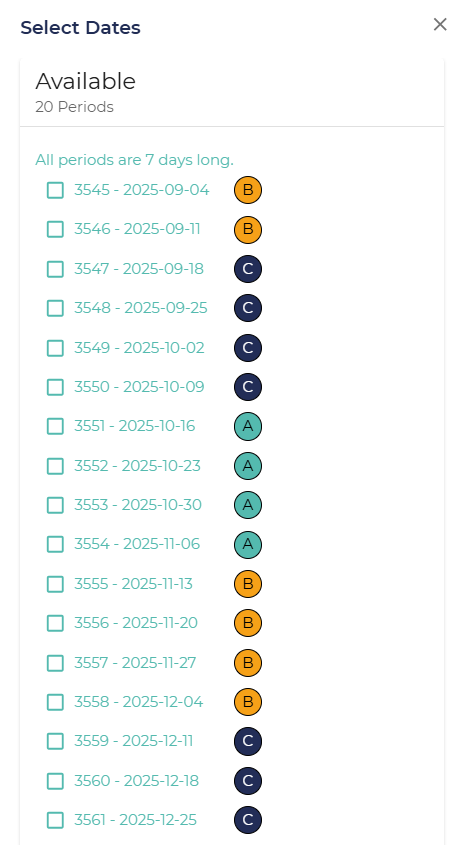
- Select the periods you wish to run it for. As little or as long as you like. (image4)
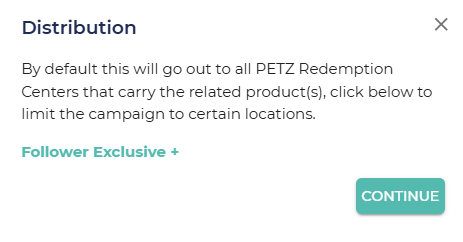
- If this is an exclusive campaign open Follower Exclusive. For more information on Exclusive Campaigns, please review the course on INSERT HERE. If this campaign is available to all retail locations, click Continue(image5)
- After that click apply and it's ready!
Follow the interactive photo slider below for screen shots of the process!

Commenting is not enabled on this course.