Skip to Content
PETZ
  • 0
    My Cart
  • Home
  • Brands
  • Retailers
  • Support
    • Brand Support
    • Retailer Support
    • Support Team
  • School
  • Contact Us
    Dashboard
PETZ
  • 0
    • Home
    • Brands
    • Retailers
    • Support
      • Brand Support
      • Retailer Support
      • Support Team
    • School
    • Contact Us
    Dashboard
  1. Courses
  2. PETZ Retailer
  3. Creating Store Promotions
Nav
Home └PETZ Retailer └Creating Store Promotions

PETZ Retailer

0 %

Completed

Course content
  • Getting Started
    • Can I enroll?
    • Getting Followers
    • Locator Information
    • Creating Store Promotions
    • Adding a User
    • Enabling Features
    • Location Card Breakdown
    • Creating a Store Follower Promotion
    • Setting Your Stores Default Promotion
  • Brand Coupons
    • POS Integration
    • Be Prepared for Increased Demand
    • Get the Word Out!
    • Request Payout
  • Getting Social
    • Creating a Spokespet
    • Making Your First Post
  • Operations
    • Archiving Products
  • Are you ready?
    • Awesome, how much?
  • Other
    • Setting Up Guest Wifi

Creating Store Promotions

Prev Next
Fullscreen Share

Store Promos!

Promotions Made Easy!
Simplify your store promotions for all pet enthusiasts! Create enticing deals with just a few clicks to attract new customers, retain existing ones, increase average order value, and clear inventory effortlessly! Store promotions are promotions from your store that you get to limit 1 per customer by using PETZ. PETZ DOES NOT reimburse for store promotions.

How to Create Store Promotions:

  1. Navigate to your Stores Portal and scroll down to locate the Store Promotions section.
  2. Press the + button to initiate the promotion creation process. (image1)
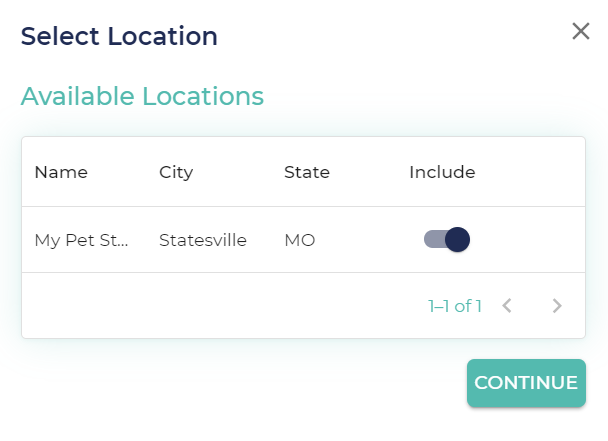
  3. Choose the location(s) where you want to run the promotion. (image2)
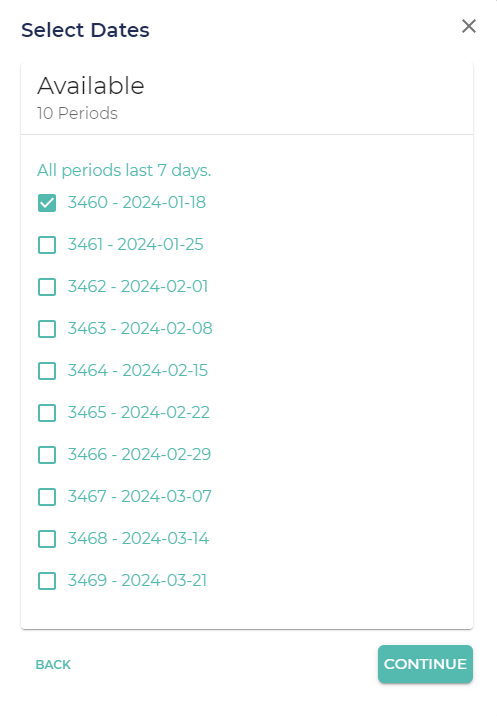
  4. Specify the period(s) during which the promotion will be active, ranging from one week to three months. (image3)
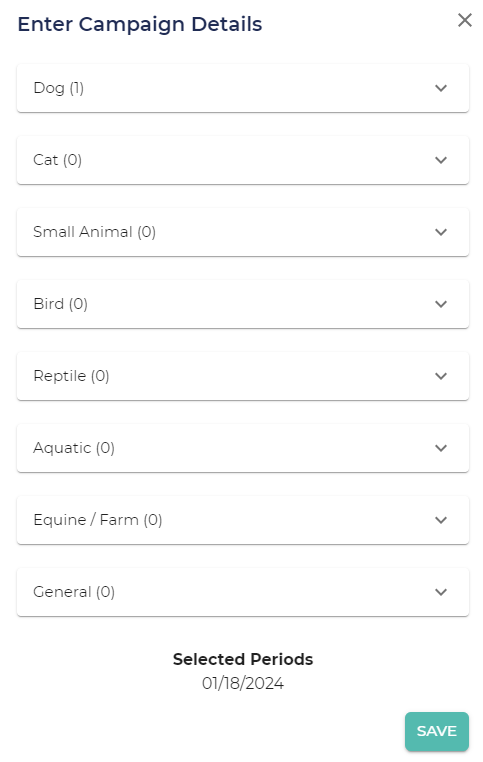
  5. Select a category and pick the desired promotion(s) you want to run, and don't worry we have a ton premade for you! (image4)
  6. Click save to finalize and launch your promotions! *Note on some screen sizes you may have to scroll down to see the save button.

If you would like, please follow the interactive photo slider for screen shots of the process!

  • ​
  • ​
Previous Next


  • About
  • Comments


Commenting is not enabled on this course.

  • Home
  • •  Account Portal •
  •  
  • Support
  • •
  • Privacy Policy
  • •
  • Terms of Service
petz-logo
Copyright © PETZ