Skip to Content
PETZ
  • 0
    My Cart
  • Home
  • Brands
  • Retailers
  • Support
    • Brand Support
    • Retailer Support
    • Support Team
  • School
  • Contact Us
    Dashboard
PETZ
  • 0
    • Home
    • Brands
    • Retailers
    • Support
      • Brand Support
      • Retailer Support
      • Support Team
    • School
    • Contact Us
    Dashboard
  1. Courses
  2. PETZ Retailer
  3. Request Payout
Nav
Home └PETZ Retailer └Request Payout

PETZ Retailer

0 %

Completed

Course content
  • Getting Started
    • Can I enroll?
    • Getting Followers
    • Locator Information
    • Creating Store Promotions
    • Adding a User
    • Enabling Features
    • Location Card Breakdown
    • Creating a Store Follower Promotion
    • Setting Your Stores Default Promotion
  • Brand Coupons
    • POS Integration
    • Be Prepared for Increased Demand
    • Get the Word Out!
    • Request Payout
  • Getting Social
    • Creating a Spokespet
    • Making Your First Post
  • Operations
    • Archiving Products
  • Are you ready?
    • Awesome, how much?
  • Other
    • Setting Up Guest Wifi

Request Payout

Prev Next
Fullscreen Share

Request Payout

Ready to cash out? 
We understand that coupons can accumulate significant savings in no time! To receive payments, we offer two options: ACH (Automated Clearing House) or check via traditional mail. You can request a payment at any time once your account balance reaches $100. Please note that a 2% fee is applicable for each payout to cover processing costs. To start earning and make the most out of your savings with our convenient payment options follow the steps outlined below when its time to get paid!

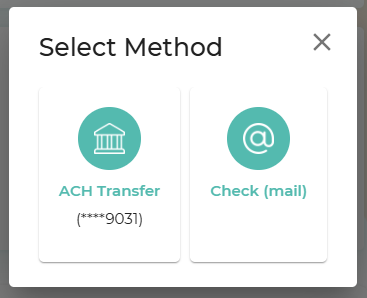
  1. Log into your portal.
  2. Locate your Account Management card. (image1)
  3. Select the "Request Payout" button. (image1 red underline)
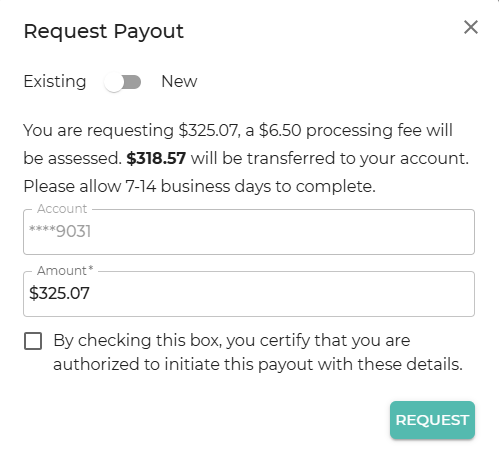
  4. Select between ACH or Check. (image2)
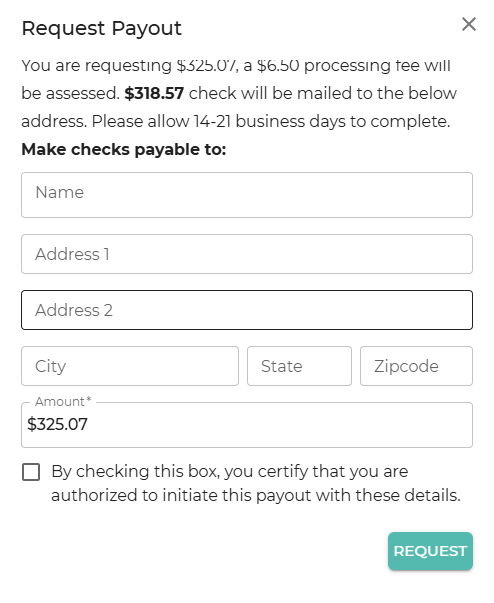
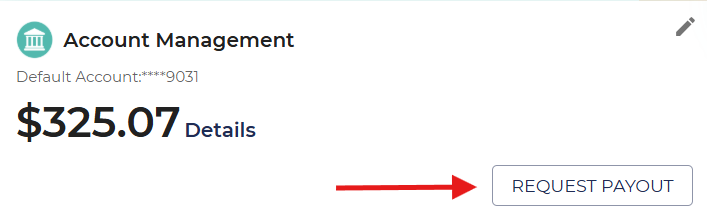
  5. Prompt for account information will pop up. (image3 and image4)
  6. Enter the information in and click "Request".

*Image 3 contains the prompt for ACH Payouts, while Image 4 contains the prompt for Check Payouts.

Please follow the interactive photo slider for screen shots of the process!
  • ​
  • ​
​ Previous ​ Next


  • About
  • Comments

Commenting is not enabled on this course.

  • Home
  • •  Account Portal •
  •  
  • Support
  • •
  • Privacy Policy
  • •
  • Terms of Service
petz-logo
Copyright © PETZ